
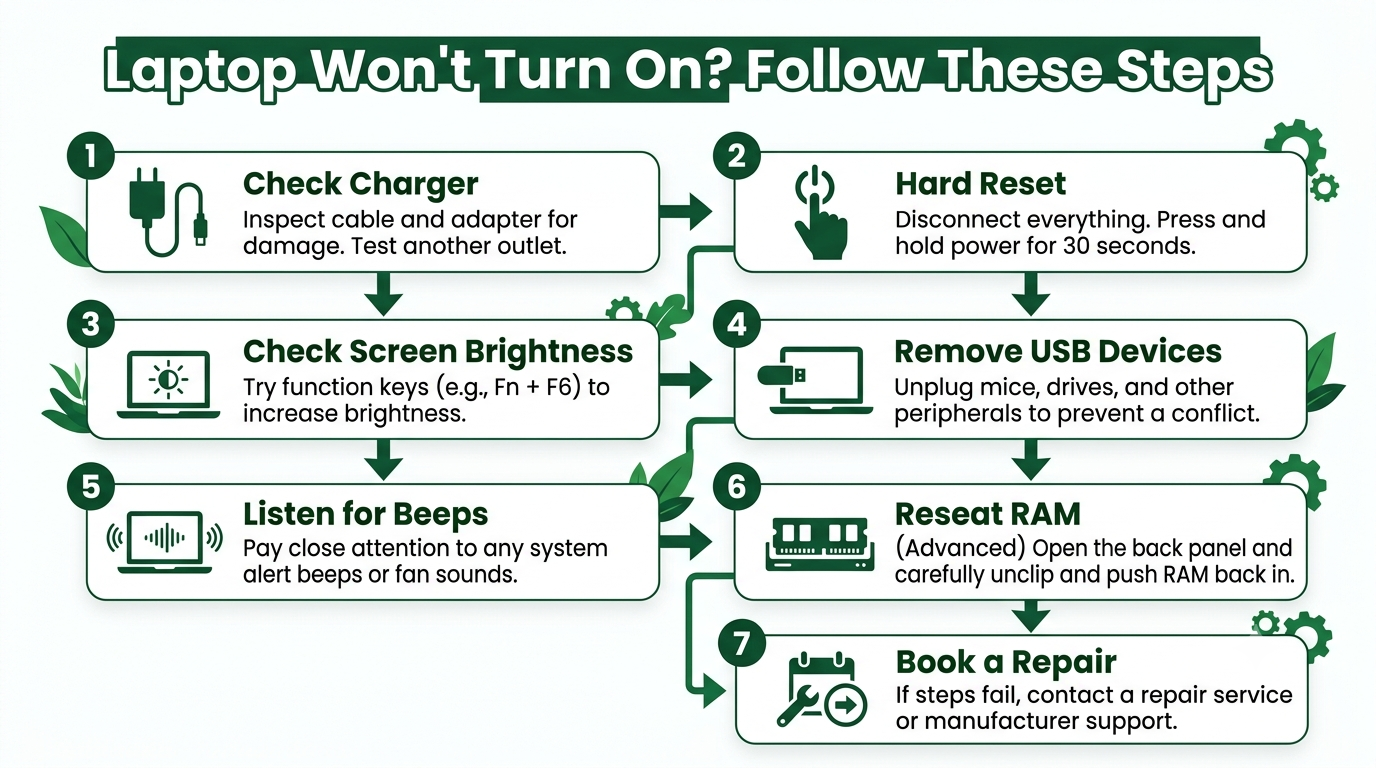
If your laptop won’t turn on, this step-by-step guide explains how to fix a laptop that won’t turn on — starting with the simplest checks and working through to hardware faults. At Technology Core in Leicester, we repair laptops every day, and most of these issues are more straightforward to diagnose than people think. Work through each step before spending money on a repair.
How to Fix a Laptop That Won’t Turn On — 7 Steps to Try
Step 1: Check the Power Supply
A faulty charger is one of the most common reasons a laptop appears completely dead — and it’s the first thing to rule out.
- Check the charging cable for any visible damage, kinks, or fraying.
- Make sure the charger is firmly plugged into both the wall socket and the laptop.
- Try a different wall socket — the socket itself may be the problem.
- Look for any indicator light on the charger or laptop. No charging light often means a faulty cable or adapter.
- If you have access to a compatible spare charger, test with that.
Fix: If a different charger brings the laptop to life, replace your original charger. They’re far cheaper than a repair.
Step 2: Try a Hard Reset (Power Cycle)
Sometimes a laptop gets stuck in a state where it can’t start properly. A hard reset often clears this.
- Disconnect the charger and remove the battery (if removable).
- Press and hold the power button for 30–60 seconds to drain any residual power.
- Re-insert the battery and plug the charger back in.
- Press the power button and see if it starts.
For laptops with non-removable batteries, simply unplug the charger, hold the power button for 30 seconds, then plug back in and try again.
Fix: This resolves many “dead laptop” cases, especially after a crash or improper shutdown.
Step 3: Check the Display
The laptop might actually be turning on — but the screen could be the issue. Look carefully at the screen in a dark room for any very faint image. If you can see something barely visible, the backlight has failed.
- Listen for fan noise, beeps, or the Windows startup sound after pressing power — these indicate the laptop IS turning on even if the screen is blank.
- Connect an external monitor or TV via HDMI. If the external display works, the laptop’s screen or its connector is the problem.
- Shine a torch at the screen at an angle — a faint image suggests a failed backlight rather than a dead laptop.
Fix: If the laptop works on an external display, the screen needs repair or replacement. This is a common and affordable repair at Technology Core, Leicester.
Step 4: Remove External Devices
A connected USB device, external drive, or USB hub can occasionally prevent a laptop from booting. The laptop may be trying to boot from the external device and failing.
- Disconnect all USB devices, SD cards, external drives, and docking stations.
- Remove any disc from the optical drive if your laptop has one.
- Try powering on with nothing connected except the charger.
Fix: If removing devices allows the laptop to boot, one of those devices was interfering. Reconnect them one at a time to identify the culprit.
Step 5: Listen for Beep Codes
When a laptop fails to boot, it sometimes communicates the problem through a series of beeps. These POST beep codes vary by manufacturer.
- One long beep + two short beeps — usually indicates a display problem.
- Continuous beeping — often RAM related.
- Three beeps (HP) — commonly a RAM fault.
- No beeps at all with a blank screen — could be a motherboard or power issue.
Search “[your laptop brand] POST beep codes” to decode what yours means.
Step 6: Check and Reseat the RAM
Loose or faulty RAM is a very common cause of a laptop not booting. If your laptop has accessible RAM slots, you can try reseating the sticks.
- Power off and unplug the laptop.
- Open the back panel (usually requires a small Phillips screwdriver).
- Locate the RAM sticks, press the side clips to release them, and gently remove.
- Reinsert firmly until the clips click back into place.
- If you have two sticks, try booting with just one, then the other.
Fix: A reseated RAM stick often resolves a no-boot situation. If one stick is faulty, replacing just that stick is inexpensive.
Step 7: When to Bring It In for Repair
If none of the above steps work, the fault is likely in the hardware — most commonly a failed motherboard, faulty DC charging jack, dead battery, or failed SSD. At Technology Core in Leicester, we offer laptop repair and diagnostics — we identify the fault quickly and give you an honest quote before any work begins.
Frequently Asked Questions
Why won’t my laptop turn on even when plugged in?
The most common causes are a faulty charger, a failed DC charging port, a completely dead battery, or a motherboard fault. Work through the steps above — starting with trying a different charger.
My laptop shows a black screen but I can hear it running — what’s wrong?
If the laptop is making noise but the screen is blank, the display or its connection is likely the issue. Try connecting to an external monitor via HDMI. If that works, the screen or its cable needs repair.
Does Technology Core offer a free diagnostic?
Yes — Technology Core offers a free diagnostic, no fix, no fee. Bring your laptop to our Leicester workshop or book a repair online. If we can’t fix it, you pay nothing.
Is it worth repairing a laptop that won’t turn on?
It depends on the age and value. Minor faults — charger, RAM, screen — almost always make sense to repair. For older laptops with motherboard faults, a refurbished replacement may be better value. We can advise honestly at Technology Core.
How long does a laptop repair take at Technology Core?
Most common repairs — screen, RAM, SSD, charging port — are completed the same day or next day. We’ll always give you a time estimate before work begins.
Still not fixed? Bring it into Technology Core in Leicester or book a repair. Need a replacement? Browse our laptops under £150 or refurbished laptops from £99 — all tested and covered by warranty.
Leave a Reply